A social media content calendar transforms chaotic posting into a systematic strategy. Planning your content in advance reduces daily stress and ensures consistent brand messaging across all platforms.
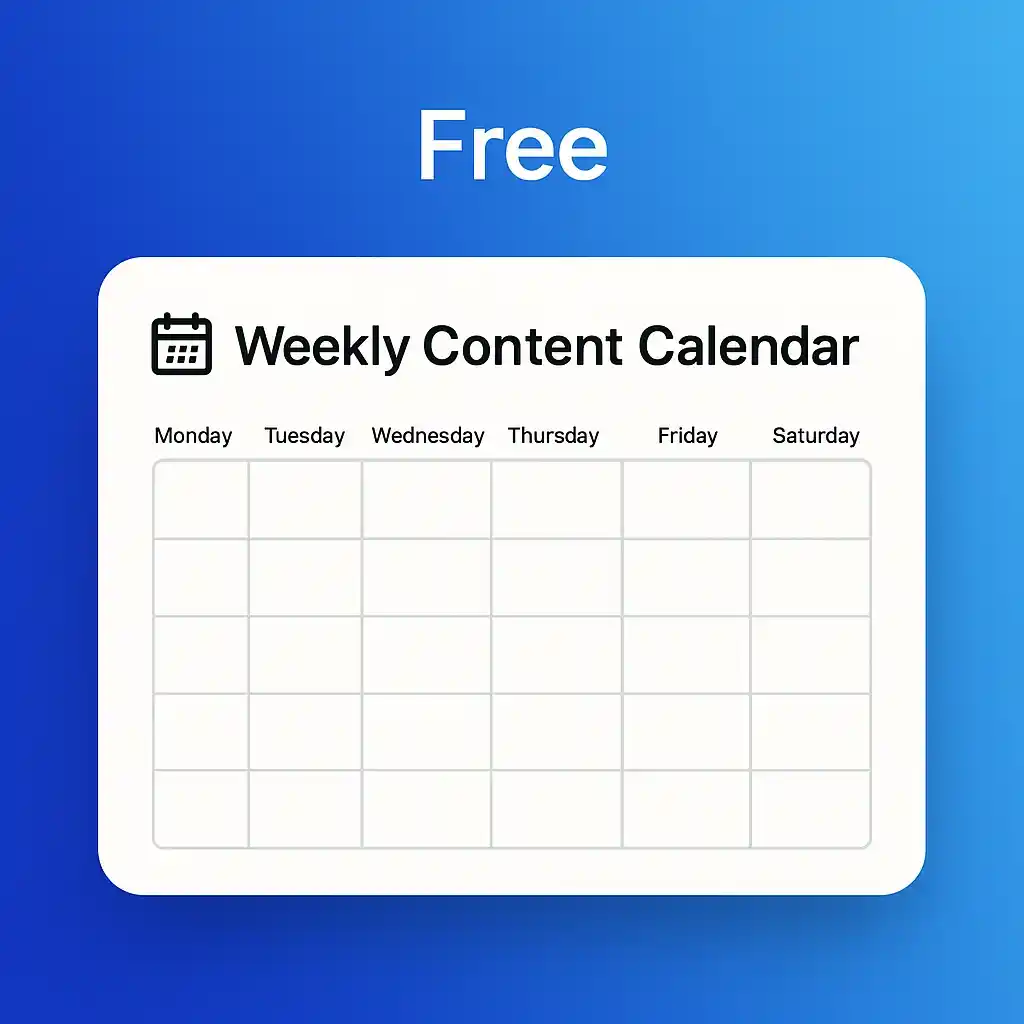
Marketing teams often struggle with last-minute content decisions and missed posting deadlines. A weekly calendar template solves these problems by centralising your planning process into one visual workspace.
This guide provides 25+ free social media calendar templates you can download and customise immediately. Each template is designed for different tools and workflows, from simple spreadsheets to project management platforms.
You’ll find templates for Google Sheets, Excel, Notion, and dedicated social media tools. Every option includes instructions for setup and best practices for maximising your content planning efficiency.
What is a Social Media Calendar?
A social media calendar is a planning tool that organises your content strategy in a visual timeline. It shows what you’re posting, when it goes live, and which platform will receive each piece of content.
The calendar format makes it simple to spot gaps in your posting schedule. You can see at a glance whether you’re maintaining consistent engagement with your audience throughout the week.
A well-structured social media content calendar helps you plan ahead, maintain a consistent posting schedule, and keep your brand’s messaging on track, which cuts down on daily planning time. Most templates include columns for platform selection, post copy, visual assets, hashtags, and approval status.

Weekly templates are particularly useful for teams managing multiple accounts. They provide enough detail for short-term execution whilst remaining flexible for strategic adjustments.
Your content calendar becomes the single source of truth for your entire marketing team. Everyone can see what’s scheduled, what needs approval, and what requires creation.
Core Components of a Content Calendar
Every effective social media calendar template includes specific fields to track essential information. The platform field identifies where each post will appear, whether that’s Instagram, Facebook, TikTok, LinkedIn, or Twitter.
Post date and time fields ensure content goes live when your audience is most active. Many templates include drop-down menus for these fields to maintain consistency.
The content description area holds your post copy, including captions and any accompanying text. Visual asset tracking shows which images, videos, or graphics accompany each post.
Hashtag columns help you maintain consistent tagging strategies. Campaign tracking fields connect individual posts to larger marketing initiatives.
Status indicators show whether content is in draft, pending approval, or ready to publish. Assignment fields identify which team member owns each piece of content.
Benefits of Using a Weekly Planning Cycle
Weekly planning creates a manageable rhythm for content creation and publishing. You can batch similar tasks together, such as writing all Monday captions in one session.
Using a content calendar also reduces ‘decision fatigue’ by moving decisions about what and when to post into a single planning session rather than daily improvisation. This concentrated planning time frees up your daily schedule for engagement and community management.

The weekly view allows you to balance content types throughout each seven-day period. You can ensure a mix of promotional posts, educational content, and engagement-focused updates.
Short-term planning makes it easier to incorporate timely content and trending topics. You’re not locked into monthly plans that become outdated quickly.
Free Google Sheets Social Media Calendar Templates
Google Sheets templates offer real-time collaboration and automatic cloud saving. Multiple team members can work simultaneously without version control issues.
These spreadsheet templates provide familiar formatting with rows, columns, and tabs. Most marketers already know how to use basic spreadsheet functions, so there’s minimal learning curve.
The best Google Sheets templates include colour-coding, conditional formatting, and drop-down menus. These features make data entry faster and reduce errors.
Template 1: Basic Weekly Social Media Planner
This straightforward template features one row per post with columns for date, platform, content, and status. It works perfectly for solo marketers or small teams managing 3-5 posts per week.
The layout includes separate tabs for each month, making it simple to review past performance. Each tab follows the same structure, ensuring consistency in your planning process.
Download this template and customise the platform options to match your active social channels. Add or remove columns based on your specific workflow requirements.
The template uses simple conditional formatting to highlight posts scheduled for today. Completed posts automatically grey out, helping you focus on pending work.
Template 2: Multi-Platform Weekly Calendar
This advanced Google Sheets template displays a separate column for each social platform. You can see your entire week’s content across Facebook, Instagram, TikTok, LinkedIn, and Twitter in one view.
Each cell contains post details including time, caption, visual asset filename, and hashtag sets. The grid layout makes it easy to spot imbalances in platform coverage.
Colour-coding differentiates content types: blue for promotional posts, green for educational content, yellow for engagement posts, and red for user-generated content.
This template includes formulas that count posts per platform and content type. The summary dashboard shows whether you’re meeting your weekly posting targets.
Template 3: Campaign-Focused Weekly Planner
This template organises content around campaigns rather than chronologically. Each campaign gets its own section with rows for individual posts across the week.
The structure helps you maintain message consistency within campaigns whilst managing multiple initiatives simultaneously. Campaign sections include budget tracking and performance note fields.
Use this template when running product launches, seasonal promotions, or content series. The campaign grouping makes it simple to review all related posts together.
Built-in summary formulas calculate total posts per campaign and platform distribution. This data helps optimise future campaign planning.
Template 4: Content Library Integration
This comprehensive Google Sheets template connects your posting schedule to a content library tab. The library stores evergreen content that can be reused across multiple weeks.
Drop-down menus in the calendar tab pull descriptions directly from your library. This approach saves time when scheduling recurring content themes.
The template includes a performance tracking tab for logging post results. You can note which content types and topics generated the most engagement.
Hootsuite recommends using your calendar to log top-performing posts and patterns so future weeks can be optimized based on real data. The template’s built-in analysis section helps identify your best content patterns.

Template 5: Team Collaboration Calendar
This Google Sheets template emphasises team workflows with assignment columns and approval checkboxes. Each post shows who created it, who reviewed it, and who scheduled it.
Comment functionality allows team members to discuss content directly in the relevant cells. Version history tracks all changes, making it easy to review edits.
The template includes a weekly planning meeting agenda section. Teams can note discussion points and decisions directly in their planning document.
Status columns show content progression through your workflow: draft, review, approved, scheduled, and published. Conditional formatting highlights items requiring immediate attention.
Excel Social Media Calendar Templates
Excel templates offer powerful functionality for teams comfortable with Microsoft Office. They work offline and integrate seamlessly with other Office applications.
Excel’s advanced features enable sophisticated data analysis and reporting. You can create pivot tables, charts, and custom formulas to track content performance.
These templates typically include more automation than Google Sheets alternatives. Macros and advanced formulas can automate repetitive tasks in your planning process.
Template 6: Excel Weekly Content Scheduler
This Microsoft Excel template features a clean weekly grid with drop-down menus for platform selection. Each day of the week gets a dedicated column with multiple post slots.
The template includes a dashboard tab that visualises your posting frequency across platforms. Charts update automatically as you add content to your weekly schedule.
Download this template for offline access during planning sessions. The standalone file format ensures your content plan remains accessible without internet connectivity.
Built-in validation rules prevent common errors like scheduling posts without selecting a platform. Error checking ensures your calendar data remains clean and useable.
Template 7: Excel Editorial Calendar
This editorial-focused template combines your social media posting schedule with blog publication dates and email campaigns. The integrated view helps coordinate cross-channel content strategies.
Separate sheets track each content type whilst a master calendar shows everything together. Colour-coding distinguishes social posts from other content types.
The template includes a content brief section for each major piece. Writers can reference these briefs whilst creating social media posts to maintain message consistency.
Performance tracking columns allow you to log results next to each post. Monthly summary sheets aggregate data for reporting purposes.
Template 8: Excel Monthly Overview with Weekly Breakdown
This dual-view template shows both monthly and weekly perspectives. The monthly sheet provides strategic overview whilst weekly tabs offer detailed planning space.
Navigation buttons make it simple to jump between weeks without scrolling through tabs. The current week automatically highlights based on your system date.
Monthly views help you spot seasonal patterns and plan themed content weeks in advance. Weekly views provide the detail needed for day-to-day execution.
The template’s summary dashboard pulls data from all weekly sheets. You can see posting consistency trends and platform distribution across the entire month.
Template 9: Excel Asset Tracking Calendar
This specialised template focuses on visual asset management alongside posting schedules. Each post links to specific image files, videos, or graphics stored in your system.
The asset column includes hyperlinks to file locations on shared drives or cloud storage. This connection eliminates searching for the right visual when publishing time arrives.
Conditional formatting flags posts missing visual assets. The system alerts you to incomplete content before publication deadlines approach.
An asset library sheet catalogues all visual content available for social media use. You can filter by type, size, and theme when planning posts.
Template 10: Excel Approval Workflow Calendar
This template streamlines content approval with built-in workflow tracking. Status columns show whether posts are awaiting review, approved, or require revisions.
Assignment fields identify the creator, reviewer, and publisher for each post. Email hyperlinks make it simple to contact team members about specific content.
The template includes a revision history section for tracking changes. Reviewers can note what modifications were requested and when they were implemented.
Automated email reminders can alert reviewers when content awaits approval. These notifications keep your publishing schedule moving forward without manual follow-up.
Notion Social Media Calendar Templates
Notion templates combine database functionality with flexible page layouts. They offer more visual customisation than traditional spreadsheets whilst maintaining structured data organisation.
The platform’s database views let you switch between calendar, table, gallery, and board layouts. This flexibility helps different team members work in their preferred format.
Notion’s linked databases connect your content calendar to other marketing documentation. You can reference campaign briefs, style guides, and brand assets directly from your posting schedule.
Template 11: Notion Weekly Calendar Dashboard
This Notion template displays your weekly social media schedule in a visual calendar view. Each post appears as a card showing platform, time, and content preview.
Clicking any card opens a detailed page with full post copy, asset attachments, hashtag lists, and notes. All information stays organised in one expandable interface.
The template includes filtered views for each platform. You can review all Instagram content for the week without seeing posts scheduled for other channels.
Tags categorise content by type, campaign, and target audience. These tags enable powerful filtering and reporting across your entire content database.
Template 12: Notion Content Pipeline
This workflow-oriented template shows content moving through stages: ideation, creation, review, scheduling, and published. Kanban board views make progression visual and intuitive.
Each content card includes status properties that update as work progresses. Team members can drag cards between columns to indicate workflow advancement.
The template links to a separate content ideas database where concepts accumulate before scheduling. This separation prevents good ideas from getting lost in weekly planning cycles.
Archive views allow you to review published content by date, platform, or campaign. Historical data helps identify successful content patterns worth repeating.
Template 13: Notion Multi-Team Calendar
This advanced template supports multiple teams managing different brand accounts or regional markets. Each team gets customised views showing only their relevant content.
Shared global views allow cross-team visibility for coordination purposes. Marketing leadership can see all brand activity across teams in unified dashboards.
Permission settings control who can edit each section. Team leads approve content whilst executives maintain read-only access for oversight.
The template includes a master content library shared across all teams. Approved brand assets and messaging guidelines stay accessible to everyone.
Template 14: Notion Campaign Tracker
This template connects your weekly social media calendar to broader campaign management tools. Each post links to its parent campaign page containing strategy documents and goals.
Campaign pages aggregate all social posts, providing complete views of multi-platform initiatives. You can see how weekly content contributes to larger marketing objectives.
Progress indicators show what percentage of campaign content is scheduled versus published. These metrics help ensure timely campaign execution.
Post-campaign analysis sections document results and lessons learned. This knowledge base improves future campaign planning and execution.
Template 15: Notion Visual Content Gallery
This gallery-focused template prioritises visual planning over text-heavy spreadsheets. Each post displays as a card showing the scheduled image or video thumbnail.
The visual layout makes it simple to ensure aesthetic consistency across your feed. You can spot colour balance issues or repetitive imagery before publishing.
Filter views organise content by platform, allowing you to review how your Instagram grid will appear. This preview capability supports cohesive visual branding.
The template includes a mood board section for collecting visual inspiration. These reference collections guide content creation and maintain style consistency.
Project Management Tool Templates
Project management platforms offer robust social media calendar capabilities. These tools excel at collaboration, automation, and integration with other marketing software.
Most project management templates turn each post into a task with assignees and due dates. This structure works well for teams accustomed to project-based workflows.
Built-in automation features can create recurring tasks for regular posting schedules. Notifications alert team members when content needs attention or approval.
Template 16: Trello Social Media Board
Trello‘s card-based system creates an intuitive content planning workflow. Each social media post becomes a card that moves through lists representing different stages.
Typical list structures include: Ideas, This Week, In Progress, Ready to Schedule, Scheduled, and Published. Cards flow left to right as content advances.
Card details hold all post information: copy, visual assets, hashtags, platform, and scheduled time. Checklists break complex posts into subtasks for creation and approval.
Labels colour-code posts by platform or content type. Due dates ensure content publishes on schedule whilst calendar power-ups provide timeline views.

Template 17: Asana Weekly Content Project
Asana templates structure social media planning as recurring weekly projects. Each week duplicates from a master template containing standard posting slots.
Task dependencies ensure content creation happens before review and scheduling. Automated notifications remind assignees when their work is due.
Timeline views show your entire week’s content in a Gantt chart format. This perspective helps identify scheduling conflicts or resource constraints.
Custom fields track platform, content type, and campaign association. These fields enable filtered views and reporting across multiple weeks.

Template 18: Monday.com Social Media Board
Monday.com boards combine visual planning with powerful automation. The platform’s colourful interface makes weekly content planning engaging and intuitive.
Each row represents a social media post with columns for all relevant details. Status columns use colour coding to show content progression at a glance.
Automations can notify designers when visual assets are needed or alert managers when posts await approval. These workflows reduce manual coordination effort.
Integration with Buffer or Hootsuite allows direct scheduling from your planning board. Content flows seamlessly from planning to publication.

Template 19: ClickUp Content Calendar
ClickUp offers multiple view options for the same content data. Switch between list, board, calendar, and timeline views depending on your planning needs.
The calendar view displays posts on their scheduled dates. The board view shows content moving through workflow stages. List views provide detailed spreadsheet-like organisation.
Custom statuses track content from ideation through publication. Teams can define workflow stages that match their specific approval processes.
Teamwork offers a template inside its project management tool where each post is a task with fields for channel, campaign, owner, and due date. Similar functionality in ClickUp enables comprehensive tracking.

Template 20: Airtable Social Media Base
Airtable combines spreadsheet functionality with database power. The platform’s linked records connect your content calendar to asset libraries and campaign trackers.
Gallery views display visual content in an attractive grid layout. Calendar views show posting schedules whilst form views enable easy content submission.
The base structure typically includes tables for: scheduled posts, content library, campaigns, and performance metrics. Linked fields connect related records across tables.
Automation features can create posts from approved content library items or send Slack notifications when schedules update. These integrations streamline your workflow.

Platform-Specific Social Media Calendar Templates
Specialised templates optimise planning for individual social platforms. These focused calendars accommodate unique features and best practices for each channel.
Platform-specific templates include fields relevant to that network’s format. Instagram templates emphasise visual planning whilst LinkedIn templates focus on professional content themes.
Using dedicated templates for major platforms ensures you maximise each channel’s potential. The focused approach prevents generic content that fails to leverage platform-specific features.
Template 21: Instagram Weekly Planner
SocialBee shares free, fully editable Instagram content calendar templates designed to map captions, visuals, and posting times. These templates emphasise the visual grid layout crucial for Instagram success.
The template displays nine squares in a 3×3 grid, mimicking how your feed will appear. This layout helps ensure colour consistency and aesthetic flow across posts.
Caption fields accommodate longer Instagram descriptions whilst hashtag columns hold up to 30 tags per post. Story slots remind you to create ephemeral content alongside feed posts.
Reel planning sections help you maintain a consistent video content schedule. The template includes space for video concepts, hooks, and calls to action.
Template 22: Facebook Content Scheduler
This Facebook-focused template accounts for the platform’s diverse content types: links, photos, videos, polls, and events. Drop-down menus help you specify post format for each entry.
The template includes columns for optimal posting times based on Facebook’s algorithm preferences. Time slots align with peak engagement periods for business pages.
Group and page posting options let you plan content for both your business page and relevant Facebook groups. This dual approach maximises organic reach.
Event promotion tracking shows how you’re supporting upcoming Facebook events through regular posts. Countdown posts and reminder content integrate with your standard schedule.
Template 23: TikTok Weekly Video Planner
TikTok templates prioritise video concepts and trending audio selection. Each post entry includes fields for video hook, key message, and call to action.
Trending hashtag columns help you capitalise on current TikTok trends. The template reminds you to check trend relevance before scheduling content days in advance.
Series tracking shows how individual videos contribute to ongoing content themes. Consistency in series posting builds audience anticipation and loyalty.
The template includes a sound library section for tracking trending audio. This reference prevents repeatedly searching for popular sounds during video creation.
Template 24: LinkedIn Professional Calendar
LinkedIn templates emphasise thought leadership and professional content themes. Post type columns distinguish between articles, documents, polls, and standard updates.
The template includes engagement prompt fields encouraging meaningful conversations. LinkedIn’s algorithm rewards posts that generate substantive comments rather than simple reactions.
Professional milestone tracking helps you celebrate company achievements and employee accomplishments. These authentic updates perform well in LinkedIn’s feed.
Connection campaign integration shows how organic content supports LinkedIn outreach efforts. Coordinated posting and networking activities amplify overall platform presence.
Template 25: Twitter (X) Threading Calendar
Twitter-specific templates accommodate thread planning alongside standalone tweets. Thread sections show how multiple tweets connect to tell complete stories.
Character count indicators ensure each tweet fits within platform limits. The template flags potential overruns requiring editing before scheduling.
Hashtag and mention columns track tags and account references for each tweet. These elements expand reach and encourage engagement from mentioned accounts.
Real-time content slots acknowledge Twitter’s newsjacking opportunities. The template leaves flexible space for timely commentary on trending topics.
Template 26: Pinterest Pin Planner
Pinterest templates focus on seasonal planning and evergreen content recycling. The platform’s long content lifespan requires different scheduling strategies than other networks.
Board designation fields show which Pinterest board will receive each pin. Strategic board distribution improves content discoverability.
Seasonal planning sections help you schedule holiday and event-related content months in advance. Pinterest users search for seasonal ideas well before dates arrive.
Pin design tracking references which graphic templates performed well previously. The template includes notes on effective visual styles for different content types.
Template 27: YouTube Publishing Schedule
YouTube templates integrate video publishing with social promotion planning. Main entries track video upload schedules whilst related rows plan announcement posts across other platforms.
Thumbnail and title testing sections help you prepare multiple options before publishing. These elements significantly impact click-through rates and video performance.
Series planning shows how individual videos fit into playlists and content arcs. Consistent series publishing builds subscriber anticipation and channel loyalty.
The template includes community tab planning for YouTube’s social features. Post updates, polls, and behind-the-scenes content between video uploads.
How to Use a Social Media Calendar Template
Download your chosen template and create a working copy. Save the original as a master file you can duplicate for future weeks or months.
Begin by inputting your posting schedule baseline. Some industry guides suggest sample weekly schedules such as 3-5 posts per week per platform as a starting point, to be adjusted based on performance and resources. Enter these regular posting slots first.
Customise columns and fields to match your workflow. Remove unnecessary fields that clutter your view and add any custom tracking elements your team requires.
Planning Your First Week
Start with a content brainstorming session before opening your template. Generate post ideas based on your content pillars and current campaigns.
Map ideas to specific days and platforms based on audience activity patterns. Check your analytics to identify when your followers are most active.
Draft post copy directly in your calendar or reference separate content documents. Include hashtag sets and mention accounts where relevant.
Assign visual asset creation tasks to designers with clear deadlines. Specify image dimensions and style requirements for each post.
Schedule approval checkpoints before publication dates. Build in buffer time for revisions and unexpected delays.
Establishing Content Themes
Assign specific themes to different days of the week. Monday Motivation, Tutorial Tuesday, and Feature Friday create predictable content patterns your audience expects.
Balance promotional content with educational and entertaining posts. The 80/20 rule suggests 80% value-focused content and 20% promotional messaging.
Rotate through your content pillars to ensure comprehensive topic coverage. Track which themes you’ve recently covered to maintain variety.
Plan campaign content alongside regular posting schedules. Integrate promotional pushes without overwhelming your feed with sales messages.
Coordinating Team Workflows
Define clear roles for content creation, approval, and scheduling. Assign these responsibilities consistently so everyone knows their tasks.
Establish approval workflows that move content through necessary review stages. Simple processes work better than complex approval chains.
Set up notification systems that alert team members when their input is needed. Automated reminders prevent bottlenecks in your content pipeline.
Schedule regular planning meetings to review upcoming content and adjust strategies. Weekly check-ins keep everyone aligned on priorities.
Integrating with Scheduling Tools
Connect your content calendar to publishing platforms like Buffer, Hootsuite, or Later. These tools automate posting at scheduled times.

Export calendar data in formats compatible with your scheduling platform. CSV exports typically work across most social media management tools.
Maintain your planning calendar as the master schedule whilst using scheduling tools for execution. This separation prevents data inconsistencies.
Review scheduled content in your publishing tool before the posting date. Confirm all visual assets uploaded correctly and formatting appears as intended.

Tracking Performance Data
Add performance tracking columns to log results after posts publish. Record metrics like engagement rate, reach, clicks, and conversions.
Compare actual performance against your expectations for each post. Identify which content types and topics resonated most with your audience.
Use historical performance data to inform future content planning. Double down on successful formats whilst adjusting or eliminating poor performers.
Planable provides a visual calendar that shows scheduled social posts and campaigns in weekly and monthly layouts. This visibility helps teams spot patterns in their content performance.
Best Practices for Social Media Calendar Planning
Maintain flexibility in your calendar for timely content opportunities. Reserve 20-30% of your schedule for reactive posts and trending topic participation.

Batch similar tasks together for efficiency. Write all post copy in one session, then move to visual creation, then to scheduling.
Plan at least one week ahead whilst maintaining a buffer of emergency content. This cushion protects your schedule when unexpected priorities arise.
Maintaining Consistency Across Platforms
Adapt core messages for each platform rather than cross-posting identical content. Tailor format, tone, and length to match platform norms.
Maintain consistent brand voice across all channels whilst adjusting formality levels. Your LinkedIn tone should differ from TikTok whilst remaining recognisable.
Coordinate timing so related content publishes across platforms within the same day. This synchronisation reinforces messages through multiple touchpoints.
Track brand hashtags consistently across all platforms. Unified hashtag strategies improve campaign tracking and audience participation.
Balancing Planning with Spontaneity
Schedule evergreen content that remains relevant regardless of publication date. This stable foundation supports your posting consistency goals.
Leave gaps for real-time marketing opportunities and trending conversations. Quick reaction posts often generate higher engagement than planned content.
Monitor your industry for emerging trends that warrant schedule adjustments. Flexibility to pivot demonstrates cultural awareness and relevance.
Review your weekly plan daily for necessary modifications. Small adjustments keep your content current without requiring complete replanning.
Optimising Posting Frequency
Start with sustainable posting frequencies you can maintain long-term. Consistency matters more than high volume you cannot sustain.

Increase frequency gradually as you build content creation capacity. Sudden volume jumps often lead to quality declines and eventual burnout.
Monitor platform algorithms and best practice recommendations for posting frequency. Each network has different optimal posting patterns.
Test different frequencies and measure engagement impact. Some audiences prefer daily updates whilst others engage better with less frequent, higher-quality posts.
Collaborating with Stakeholders
Share calendar access with relevant stakeholders for transparency. Executives, product teams, and customer service should see upcoming social content.
Build in approval time for legally sensitive or high-stakes content. Some posts require legal, compliance, or executive review before publishing.
Gather content contributions from across your organisation. Subject matter experts can provide authentic insights that enhance your social presence.
Communicate major campaigns and initiatives through your content calendar. This visibility helps other teams coordinate their activities with your social strategy.
Reviewing and Refining Your Process
Conduct monthly calendar audits to assess what’s working. Review posting patterns, content performance, and workflow efficiency.
Gather team feedback on template functionality and planning processes. Front-line users often identify improvement opportunities leadership might miss.
Update your template based on evolving needs and learnings. Your calendar should grow more effective as you identify better planning methods.
Document successful content formulas and disappointing approaches. This institutional knowledge improves planning quality over time.
Streamline Your Social Media Strategy
A weekly content calendar template transforms social media management from reactive scrambling to proactive strategy. You’ve now got access to 25+ free templates across multiple platforms and tools.
Download the template that matches your team’s workflow and tools. Customise fields to track the information most relevant to your strategy.
Start planning next week’s content today. Map out your posting schedule, assign creation tasks, and establish approval workflows.
Review your calendar daily whilst maintaining your weekly planning rhythm. This balance between structure and flexibility keeps your content both consistent and current.
Learn how to create the perfect social media content calendar for 2025 to deepen your strategic planning skills.
Consistency compounds over time. The discipline of weekly planning pays dividends in audience growth, engagement rates, and marketing efficiency.